Windows Persistence and XDR Analysis
Windows Persistence and XDR Analysis
Windows Persistence Methods
Persistence methods in Windows are used to ensure that malicious software or unauthorized access continues even if a system is restarted or the user is logged off.
1- User Manipulation (Users)
A commonly used method by attackers to maintain persistence is to create users. In fact, the only reason for doing this is not to ensure permanence. We observe that the attacker(s) create new users when they take control of the "Administrator" account. Because this is an important user and his activities can be monitored regularly. So they create a new user who won't attract much attention and, if possible, increase that user's privileges.
Generated users usually contain keywords such as "support", "sysadmin", "admin". In most companies, users with names like these will not attract much attention.
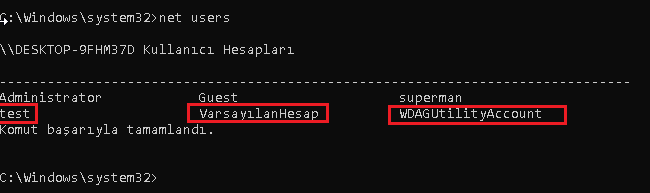
We can use the "net users" command to view existing accounts on the computer.
netuser
During an incident response procedure, there are 2 things we need to quickly evaluate. Is there a user that shouldn't be on the system right now? Was a user created during the attack and deleted later?
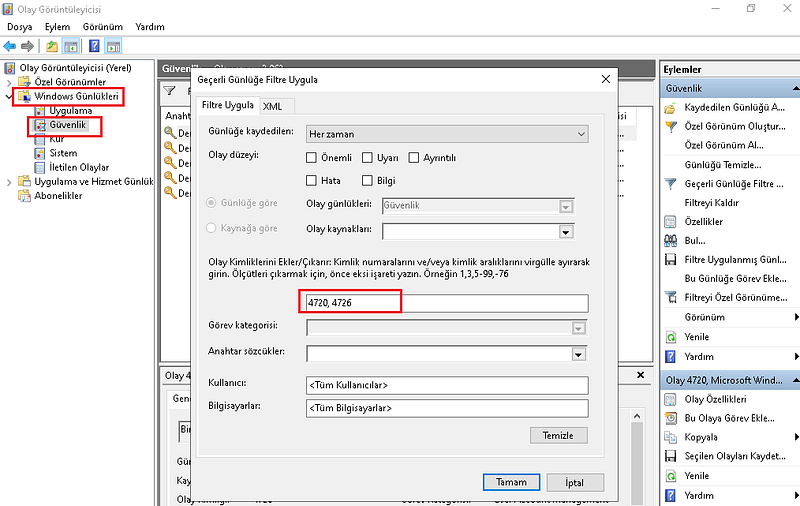
We can search on EventViewer to see created and deleted users.
- Creating User:
- Event ID 4720: This event is logged when a new user account is created.
- User Deletion:
- Event ID 4726: This event is logged when a user account is deleted.
Event Viewer Filtering
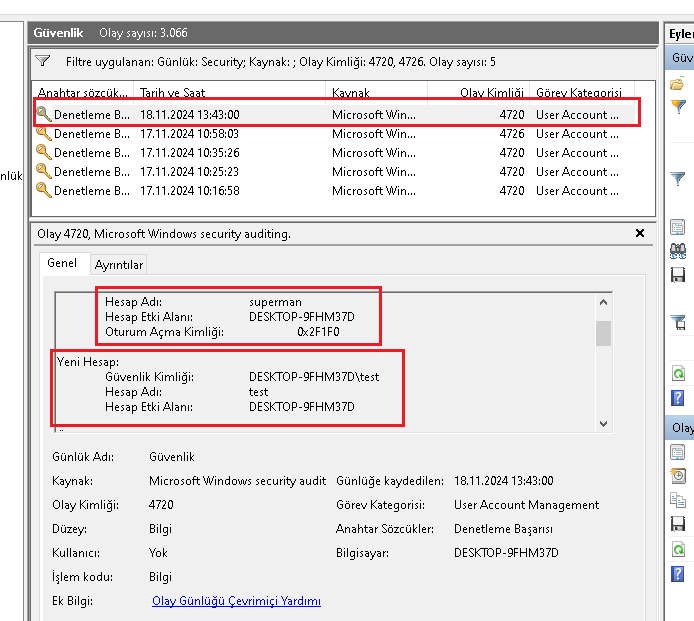
In the records in the Event Viewer, we can see the user created, the time and the user through whom it was created.
EventViewer log review
2- Scheduled Task
One of the most used persistence methods is to create scheduled tasks. From viruses to ransomware, most malicious things use scheduled tasks to maintain persistence. The attacker uses scheduled tasks to ensure that the malicious file runs at regular intervals. There are various ways to detect suspicious scheduled tasks actively running on the system. First, let's show how to do this using "Autoruns", a sysinternals tool. Autoruns: Download.
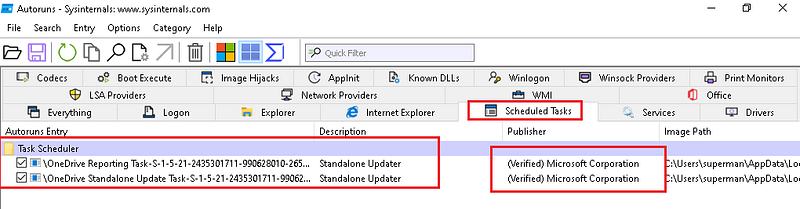
Analysis with Autoruns tool
When we look at the scheduled tasks section with the Autorun tool, we can see the scheduled tasks of the OneDrive service. Of course, this service is safe and legal because it is signed and verified by Microsoft.
3- Registry Run Keys
Registry run keys are places used in the Windows operating system to enable certain programs or commands to start automatically. These switches are activated when the system is turned on or a user logs on. By using these keys, malware tries to establish persistence in the system, that is, they can reboot themselves when the system is restarted or the user logs in.
Registry keys can be edited with the regedit tool.

registry editor
The following run keys are created by default on Windows systems:
Â
 ◠HKEY_CURRENT_USER\Software\Microsoft\Windows\CurrentVersion\Run
 ◠HKEY_CURRENT_USER\Software\Microsoft\Windows\CurrentVersion\RunOnceÂ
 ◠HKEY_LOCAL_MACHINE\Software\Microsoft\Windows\CurrentVersion\Run
 ◠HKEY_LOCAL_MACHINE\Software\Microsoft\Windows\CurrentVersion\RunOnce
The following Registry keys can be used to set startup folder items for persistence:
â— HKEY_CURRENT_USER\Software\Microsoft\Windows\CurrentVersion\Explorer\UserShellFolders
 ◠HKEY_CURRENT_USER\Software\Microsoft\Windows\CurrentVersion\Explorer\ShellFoldersÂ
 ◠HKEY_LOCAL_MACHINE\SOFTWARE\Microsoft\Windows\CurrentVersion\Explorer\ShellFoldersÂ
 ◠HKEY_LOCAL_MACHINE\SOFTWARE\Microsoft\Windows\CurrentVersion\Explorer\UserShellFolders
The following Registry keys can control automatic startup of services at boot:
â— HKEY_LOCAL_MACHINE\Software\Microsoft\Windows\CurrentVersion\RunServices OnceÂ
 ◠HKEY_CURRENT_USER\Software\Microsoft\Windows\CurrentVersion\RunServices OnceÂ
 ◠HKEY_LOCAL_MACHINE\Software\Microsoft\Windows\CurrentVersion\RunServicesÂ
 ◠HKEY_CURRENT_USER\Software\Microsoft\Windows\CurrentVersion\RunServices
Using policy settings to specify startup programs creates corresponding values in one of two Registry keys:
â— HKEY_LOCAL_MACHINE\Software\Microsoft\Windows\CurrentVersion\Policies\Explorer\Run
 ◠HKEY_CURRENT_USER\Software\Microsoft\Windows\CurrentVersion\Policies\Explorer\Run
With these keys, programs can be started at boot time or logon time. We can see the programs launched with the Autoruns tool.
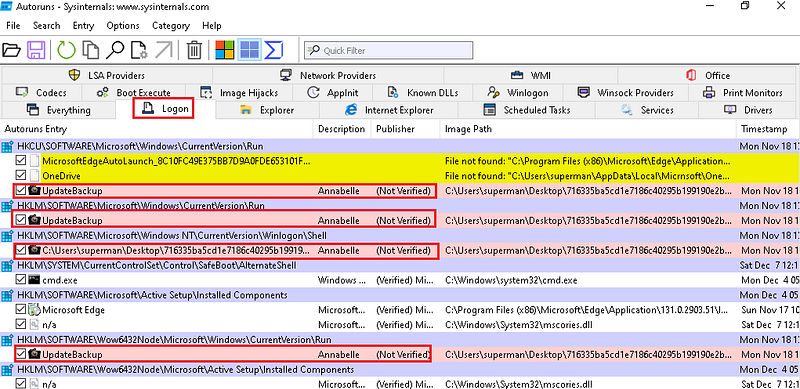
Autoruns Logon Keys
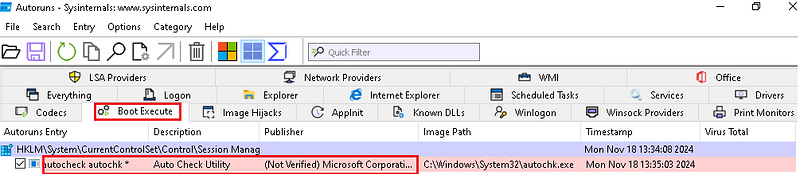
Autoruns Boot Keys
4-Startup Folder
To view the files added to the startup file, the following indexes must be marked.
- C:\Users[Username]\AppData\Roaming\Microsoft\Windows\Start Menu\Programs\Startup
- C:\Programshell:startupData\Microsoft\Windows\Start Menu\Programs\StartUp
We can access the startup folder with the run window opened by pressing the Win + R keys in Windows.
shell:startup
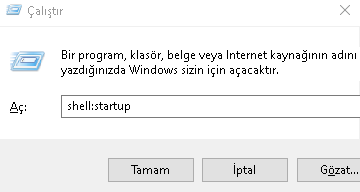
startup folder
We can see the files left by the malware in the startup folder we open with the Run tool.
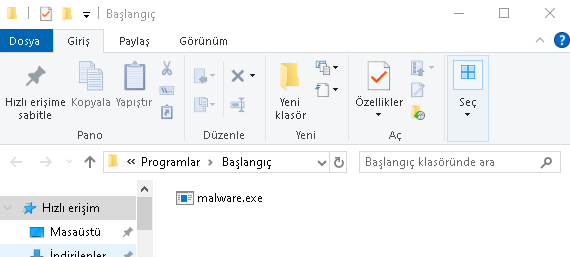
Startup Folder
5- Services
Attackers can create a new service or modify an existing service to run malicious commands. They may use legitimate code names like "Chrome Update" to make it harder to detect the service they created or modified.
To detect a newly created service from the Event Logs, the log with ID 4697:A service has been installed in the system can be used.
In addition to permanence, "Windows Defender", "Firewall" etc. are used for security measures to easily carry out hacking activities. They constantly stop the services.
For these reasons, when analyzing a Windows device, it should be examined which services were created/changed and which systems were stopped.
The autoruns tool and event viewer can again be used in this analysis.
Note: Since my test machine crashed due to ransomware infection, I couldn't take pictures of this section, and I didn't want to deal with reinstalling it :)
6-BITS Jobs
BITS (Background Intelligent Transfer Service) is a component of the Windows operating system and is often used to perform updates and file transfer operations. However, malicious users can use BITS for malware.
Malware persistence with BITS Jobs can occur as follows:
- File Download and Execution: A malicious application can download a file and execute it by creating a BITS job. This keeps the application running for a long time and can be effective even when the system is rebooted.
- Privacy and Security Bypass: BITS jobs are often allowed by firewalls and can be an ideal method for malicious operations. This makes it difficult to detect and block malicious applications.
- Command Execution: BITS jobs can be used to execute a specific command. This command can be run when the BITS job is completed or an error occurs.
For example, a malicious application can create a job via BITSAdmin and this job can be set to download and run a specific file.
In this article, I touched upon the methods of maintaining the persistence of malicious software on computers. For more, you can examine the persistence tactic of the Miter attack enterprise matrix. See: https://attack.mitre.org/tactics/TA0003/
Ensuring Persistence for SOC Analysts Comprehensive XDR Analysis Guide
In cyber security operations, persistence is one of the most critical stages that allows an attacker to leave a permanent footprint on the system. This makes it possible for the attack to reach its long-term goals beyond the initial access vector (for example, a phishing email or a vulnerability exploit). It guarantees attackers continued access to the system, beyond traditional antivirus (AV) solutions or system reboots. Persistence provides threat actors with a number of advantages: the ability to create a backdoor to communicate with Command and Control (C2) servers, bypass traditional security controls, and facilitate privilege escalation and horizontal mobility within the network. This stage plays a decisive role in transforming a cyber attack from a short-term incident into a long-term infiltration operation.
This report dives into the Windows registry-based persistence mechanisms a SOC analyst may encounter, focusing on specific tactics and techniques from the MITRE ATT&CK knowledge base. In particular, common techniques such as T1547: Boot or Logon Autostart Execution and T1112: Modify Registry will be discussed and how to detect these techniques will be detailed.
Part 1: Persistence Mechanisms via Windows Registry
1.1. Autostart Registry Keys: Basic Mechanisms
Windows uses registry keys to automatically run certain programs during user session or system startup. Attackers exploit this legitimate functionality to persist their own malware on the system. Additions to these keys allow the malware to be re-executed every time the system starts or a user logs on.
HKEY_CURRENT_USER\Software\Microsoft\Windows\CurrentVersion\Run: This key includes programs that run automatically only when the current user logs in. TheRunOncekey ensures that the program is run only once and is automatically deleted after a reboot.HKEY_LOCAL_MACHINE\Software\Microsoft\Windows\CurrentVersion\Run: This key contains programs that run automatically for all users on the system, regardless of a user. Making changes to this key usually requiresSYSTEMorAdministratorprivileges, which may be an indication that the attacker has gained deeper access to the system.
According to MITRE ATT&CK data, the Registry Run Keys / Startup Folder (T1547.001) technique is the most frequently used persistence method by 54 known threat groups. One of the main reasons why this technique is so widely used is that it is a legitimate feature of Windows and therefore can be easily overlooked by traditional security solutions. This makes it clear that for a SOC analyst, these keys are the first place to check when starting threat hunting. Because attackers' use of these keys is a result of their search for a high success rate and low detection risk. Therefore, prioritization of persistence-oriented detection rules should focus on anomalies in this area.
1.2. Other Critical Persistence Keys and Paths
Persistence is not limited to just basic Run keys. Attackers can also target lesser-known or system-specific keys to reduce the risk of detection.
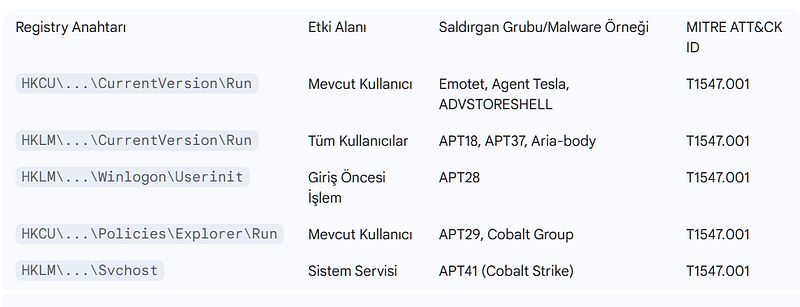
HKEY_LOCAL_MACHINE\SOFTWARE\Microsoft\Windows NT\CurrentVersion\Winlogon\Userinit: This key references the program that was run before the user logon process started. Attackers can manipulate this key to run their own backdoor before or instead of the legitimateuserinit.exefile at login.HKEY_CURRENT_USER\Software\Microsoft\Windows\CurrentVersion\Explorer\User Shell Folders: These keys determine the location of user-specific Windows shell folders (for example, the "Startup" folder). By changing these keys, attackers can cause a malicious executable or script to run in the "Startup" folder.HKEY_LOCAL_MACHINE\Software\Microsoft\Windows\CurrentVersion\Policies\Explorer\Run: This key is used to specify automatic startup programs through Group Policy settings. Attackers can exploit these keys to achieve permanent residency on the system.HKEY_LOCAL_MACHINE\SOFTWARE\Microsoft\Windows NT\CurrentVersion\Svchost: More advanced threat actors can also target lesser-known system keys. For example, APT41 modified this key for Cobalt Strike permanence. This shows that attackers are looking for creative ways beyond standard Run keys.
1.3. Real World Examples: Attacker Groups and Use of Malware
MITRE ATT&CK data provides concrete examples of how different threat groups and malware use these techniques.
- Emotet Trojan: To ensure persistence, Emotet adds a
Runswitch that points to the malicious DLL file it drops in the%AppData%path. In this way, it runs automatically every time a user logs in. - APT28 (Fancy Bear): This advanced persistence technique manipulates the
Userinitkey, allowing it to install a backdoor before legitimate operations can begin. This demonstrates a sophisticated approach that targets a critical point in the system boot chain, beyond more basic attacks. - APT41: APT41's use of the
Svchostkey proves that attackers have a deep understanding of the inner workings of Windows and can go beyond standard security controls.
The following table serves as a quick reference guide for a SOC analyst and summarizes the most common registry persistence keys, their effects, and related threat examples.
Part 2: Detection and Analysis via Event Logs
2.1. Windows Security Event Logs
One of the most basic sources for monitoring registry changes in the system is Windows' local event logs. Event ID 4657 records that a registry value has been modified, created or deleted. Analysis of this event is key to revealing the footprints of an attack. However, it should be noted that in order for this event ID to be recorded, the auditing policy on the relevant registry keys must be enabled in advance.
Event ID 4657 contains four main data fields that an analyst should examine:
Subject(Subject): This field provides information about the user account that made the change (Security ID,Account Name,Logon ID). It is suspicious that a user account (Guestor a normal user) is performing this action when the system normally should not make such a change.Object(Object): Shows the exact location (Object Name- key path) and the name of the value (Object Value Name) where the change was made. It is critical to look for known persistence keys such asRun,RunOncein these fields.Process Information(Process Information): The name and ID (Process Name,Process ID) of the executable file that performs the change are located in this field. System administrator tools such aspowershell.exe,cmd.exe,reg.exemaking changes to these keys should be carefully examined because they are frequently used by malicious scripts.Change Information(Change Information): TheNew ValueandOld Valuefields show the content of the change, that is, the file path or command line arguments to be executed. The presence of file paths in this area that point to unusual or publicly writable directories such asC:\Users\Public\,C:\ProgramData\is a strong indicator of a threat.
2.2. Sysmon Event Logs
Sysmon (System Monitor) is a tool that provides much richer and more detailed telemetry data compared to Windows Event Logs. Sysmon provides two important event IDs specifically for tracking registry changes. These events contain additional contextual information beyond Windows' local logs that helps understand the root cause of the event.
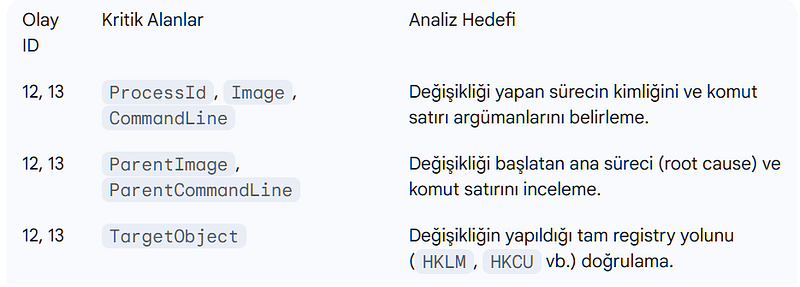
Event ID 12(RegistryEvent - Object create and delete): This event tracks the creation or deletion of registry keys and values. This event can detect an attacker creating a new 'Run' key to achieve persistence.Event ID 13(RegistryEvent - Value Set): This event records changes to the content of existing registry values. This event can detect an attacker changing the value of a previously existing 'Run' key.
These Sysmon events represent critical information for an analyst, such as ParentImage and ParentCommandLine. Contains key areas. These fields show what the main process that made the change was and how it was started. This is vital for tracing back to the source of the attack and reconstructing the attack chain. For example, if a PowerShell script is detected to cause a registry change, the ParentImage field can indicate which parent process (such as explorer.exe) started this script.
Chapter 3: In-Depth Analysis and Threat Hunting with EDR/XDR Solutions
3.1. The Role of EDR in Determining Registry Persistence
EDR (Endpoint Detection and Response) solutions collect rich telemetry data from sources such as registry, file system, process and network connections by continuously monitoring and recording activities on endpoints (servers, desktops). EDR platforms identify potential threats by running behavioral analysis, machine learning, and rule-based detection engines on this data. For example, an executable running from an unusual location attempting to modify a critical registry key could trigger a high-priority alarm for an EDR solution.
3.2. Comprehensive Analysis and Correlation with XDR
XDR (Extended Detection and Response) provides much more comprehensive visibility by combining the capabilities of EDR with a wider range of data (network traffic, email, cloud, credentials). An attack is never just a single action; It consists of a series of linked events. This highlights the need to consider events that are part of an attack chain (kill chain) as a whole, rather than considering them separately.
An XDR platform can reveal the full story of the attack by correlating a registry change with other events. Rather than evaluating events in isolation, an EDR/XDR solution combining all this data through correlation rules is a fundamental step in understanding the entirety of the attack. The flow of this connectional analysis works as follows:
- Initial Access Vector: An attack typically begins with a phishing email or file download from a malicious website. XDR can detect this first step via email or network telemetry.
- File Creation: The malicious file (
.exeor script) is left in a temporary directory (such asC:\Users\Public\). EDR records this file creation event with logs such as Sysmon Event ID 11. - Providing Persistence: This malicious process modifies a
Runkey or adds a new key to provide persistence. EDR detects this registry change with Sysmon Event ID 12/13 or Windows Event ID 4657. - Command and Control (C2) Communication: Once persistence is established, the malicious process communicates with a C2 server. EDR/XDR identifies this abnormal network traffic (for example, a connection to an unknown IP address or an unusual port) with Sysmon Event ID 3 or other network telemetry logs.
This correlation chain turns a single registry change alert into a high-confidence event that includes all the steps of a cyber attack.
3.3. Correlating Registry Changes with Other IOCs
Correlation with other indicators is vital to distinguish whether a registry change is a real threat or a legitimate action.
- Correlation with Network Connections: It should be checked whether the process making a suspicious registry change creates abnormal network traffic. Traffic to unknown IP addresses or unusual ports may be a sign of C2 channels or data exfiltration attempts.
- Correlation with File and Process Events: When the
Registry modificationalarm is triggered, simultaneousProcess creation(Sysmon Event ID 1) andFile creation(Sysmon Event ID 11) events should be examined. This helps understand how the malicious file first entered the system (for example, it may have been dropped by a PowerShell script) and which host process made this change.
Many legitimate software (e.g. updates, antiviruses) can also modify Run keys, resulting in false positives. However, on an EDR/XDR platform, the mere act of a process changing the Run key may not be suspicious. This event, combined with the same process dropping a new file into a suspicious directory such as C:\Users\Public\ and then establishing a network connection to a known malicious IP address, creates a high reliability alarm. This multi-event correlation is key to reducing false positives and uncovering real threats.
Chapter 4: Limitations, Cautions, and Advanced Techniques
4.1. Managing False Positives: Distinguishing Legitimate Processes
One of the biggest challenges a SOC analyst may face is distinguishing legitimate registry changes from malicious ones. Many legitimate software (e.g. updates, antiviruses, administrative scripts) use automatic startup keys. To manage this situation, analysts must understand the behavioral characteristics of legitimate processes and define exceptions to detection rules. Legitimate software usually runs from standard system directories such as C:\Program Files\ and has specific filenames. Adding exceptions to these paths can significantly reduce noise.
With a proactive approach, a baseline of autostart entries in the system can be created using tools such as Get-PSAutorun. By comparing this baseline with new scans taken periodically, newly added or changed entries into the system can be quickly detected.
4.2. Hiding Tactics of Attackers
Attackers use a variety of cloaking tactics to avoid detection. It is important for a SOC analyst to know these techniques to identify threats that may be overlooked in manual controls.
NullKeys Obfuscated with Characters: Attackers can prevent registry key names from being displayed by some standard Windows tools (Reg.exe,Regedit) by adding anullcharacter (\x00) at the beginning of their names. This indicates that rather than relying solely on Windows native tools, the analyst should rely on tools that provide in-depth telemetry, such as Sysmon or advanced EDR solutions.- Spoofed File Paths and Process Names: Malware can disguise themselves as legitimate system files. For example, a malicious file could be placed in a system directory such as
C:\Windows\System32\or a legitimate process name such asWindowsUpdatecould be used.
4.3. A Brief Overview of Beyond Registry Persistence Techniques
A SOC analyst's perspective should not be limited to focusing solely on the registry. In a persistence hunting mission, it should be considered that a threat actor may use more than one method.
- Scheduled Tasks: Attackers can create malicious tasks that run periodically or based on certain events, such as a login, through the
schtasks.execommand or the Task Scheduler GUI. These missions can be deployed once and remain undetected for long periods of time. - WMI Event Subscriptions: WMI (Windows Management Instrumentation) is a powerful system management tool that can be used to run code following an event (for example, a system power-up or a user logon). Attackers can gain a permanent position in the system by creating WMI event filters, consumers, and bindings.
- Windows Services: Attackers can create a new service with the
sc createcommand or hijack an existing service and run their malicious codes withSYSTEMprivileges.
Conclusion and Recommendations
For a SOC analyst, understanding and detecting Windows registry persistence mechanisms is the foundation for breaking an attack chain and limiting the long-term effects of an infiltration. The findings of this report show that persistence hunting relies not only on technical knowledge, but also on understanding the factual correlation and behavioral patterns of threat actors.
Key Takeaways for SOC Analysts:
- Focus on the most common
Runkeys, but do not ignore lesser-known keys (e.g.WinlogonandSvchost). Attackers can use legitimate system functions to hide. - Don't rely solely on Windows Event Logs; Use tools that provide rich telemetry, such as Sysmon. Sysmon offers the unique ability to identify the parent process making the change and its command line arguments.
- Don't focus on just one log record. Using EDR/XDR's correlation capabilities, view a registry change as part of an attack chain (registry change -> process creation -> network connection).
- Be alert to attackers' hiding tactics. Techniques such as keys obfuscated with
nullcharacters and forged process names can be missed by standard tools. - Do not limit threat hunting to just the registry. Also check other persistence mechanisms such as Scheduled Tasks, WMI Event Subscriptions, and Windows Services.
Steps for Proactive Defense:
- Enable auditing policies for critical registry keys and forward these logs to a central SIEM solution.
- Detect abnormal changes faster by creating a baseline of automatic launch points throughout the system.
- Restrict non-privileged users from making changes to critical registry keys by applying the principle of Least Privilege.
- Correctly configure EDR/XDR solutions and take full advantage of these platforms' proactive threat hunting capabilities. These steps will strengthen an organization's cyber defenses and make it harder for threat actors to leave a permanent footprint on systems.