Windows System Management
Windows System Management
Windows System Administration is a set of processes and tools that involve managing Windows operating systems. These processes cover a wide range from user and account management to optimizing resources, from implementing security policies to controlling network configurations. System administrators; It improves operational efficiency by monitoring system performance, troubleshooting, and automating using tools such as Microsoft Management Console (MMC), PowerShell, and Group Policy Management (GPO). It also performs the necessary configurations to ensure that users and system resources work in harmony at the central or local level. Windows system administration plays a critical role in meeting the needs of individual users and corporate networks.
Command Prompt â€" CMD
Command Prompt (CMD) is the command line interface of the Windows operating system and can be used to perform many tasks, including basic system administration operations.
For automation or repetitive tasks, CMD commands can be collected in a BAT file (or Batch file). These files have the extension .bat and can be run by double-clicking or via CMD.
Some frequently used cmd commands are listed:
1- Viewing System Information
systeminfo
It lists detailed system information such as operating system, hardware and network information.
2- Displaying Operating System Version
give
Shows version information of the operating system
3- Viewing the Computer Name
hostname
Shows the name of the computer.
4- Viewing System Time
time
Shows the system time and allows you to change it.
5- Viewing the system time
date
It shows the system date and allows you to change it.
6- Deleting Files
del <file_name>
Deletes the specified file.
7- Deleting Directory
rmdir <directory_name>
Deletes the specified directory.
8- Viewing the IP Address
ipconfig
Shows network adapters information such as IP address, subnet mask, and default gateway.
9- Testing Network Connections (Ping)
ping <target_address>
Tests the connection by pinging the specified target
10- Viewing the Network Routing Table
route print
Shows the network routing table.
11- Listing Network Shares
net share
Lists shared resources on the computer.
12- Cleaning DNS Cache
ipconfig /flushdns
Clears the DNS cache.
13- Listing Tasks
tasklist
Lists running processes.
14- Ending the Mission
taskkill /pid <process_id> /f
Terminates the specified process.
15- Listing Services
sc start <service_name>
sc stop <service_name>
Starts or stops the specified service.
16- Service Start/Stop
shutdown /s /t 0
shutdown /r /t 0
Starts or stops the specified service.
17- System Shutdown/Restart
shutdown /s /t 0
shutdown /r /t 0
Shuts down or restarts the system.
18- Managing Power Options
powercfg /list
Lists power plans.
19- Listing Disk Volumes
diskpart
list volume
Lists disk volumes.
20- Disk Cleanup
cleanmgr
Launches the disk cleanup tool.
21- Disk Check
chkdsk <drive_letter>
Checks the disk and fixes errors.
Example: chkdsk C: /f
22- Listing User Accounts:
netuser
Lists user accounts in the system
23- Adding/Deleting User
net user <user_name>
/add
net user <user_name> /delete
Deletes the specified user account.
Example: net user Ahmet /delete
24- Viewing Group Memberships
net localgroup
Lists local groups and their members.
25- Cleaning Command History
cls
Clears the command window.
26- Printing the Content to the Screen
echo
Prints a variable or string to the screen.
27- Printing the File to the Screen
type
Prints the contents of a text file to the screen.
28- Changing Directory
cd
cd (Change Directory) is used to switch to the specified directory. This command allows navigation between directories.
29- Viewing the Directory
is
To view the names, sizes, creation dates, and other properties of files and directoriesis used
30- File/Directory Copying
copy
It is a basic command used to copy a file or files from one place to another.
Microsoft Management Console â€" MMC
It contains many tools that allow us to make many configurations in the Windows operating system and monitor the system. MSC is an extension of Microsoft Management Console (MMC) files used in Windows operating systems. These files provide a framework for running different management tools and components together. Files with the MSC extension provide direct access to specific administration-focused tools to simplify day-to-day administrative tasks for system administrators. Now let's look at these vehicles one by one.
You can run MSC files on your computer by pressing the "Win ​​+ R" hotkey and typing its name in the run menu that opens.
1- Computer Management
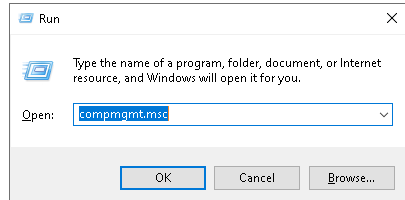
compmgmt.msc
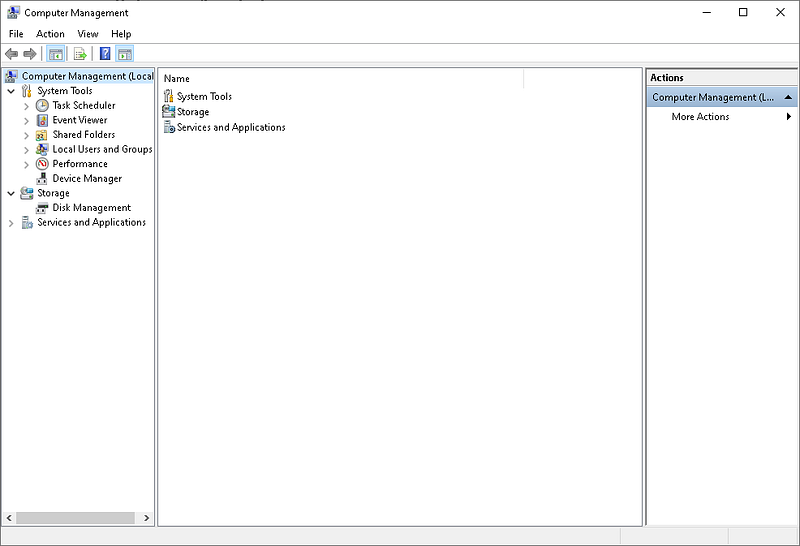
Computer Management
It is an interface used to open the Computer Management console in the Windows operating system. This tool is like a control panel that allows users to manage system resources and services together. Computer Management includes three main sections: System Tools (Event Viewer, Device Manager, Shared Folders), Storage (disk configuration with tools such as Disk Management), and Services and Applications
2- Device Manager
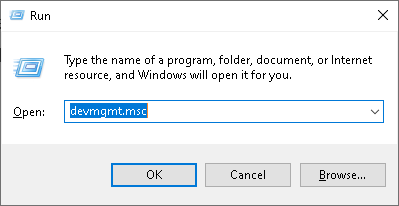
devmgmt.msc
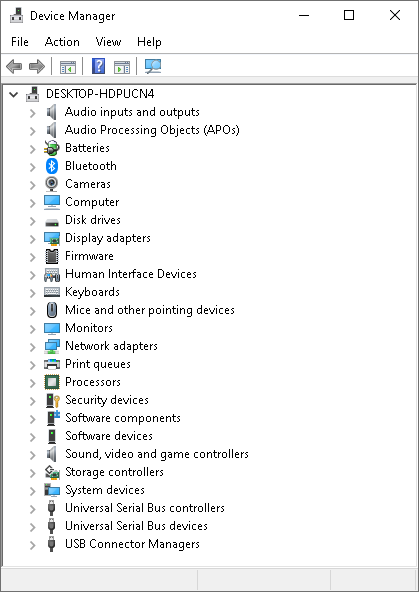
Device Manager
It is a script used to open the Device Manager tool in the Windows operating system. Device Manager allows you to view and manage the hardware devices on your computer. This tool is used to update, disable, uninstall or troubleshoot drivers. Hardware categories; Includes processors, network adapters, video cards, disk drives, and more. Additionally, if there are errors with a hardware device, it notifies the user via yellow triangle warning icons. Device Manager is a critical tool for system administrators and users to diagnose and manage hardware-related problems.
3- Disk Management

diskmgmt.msc
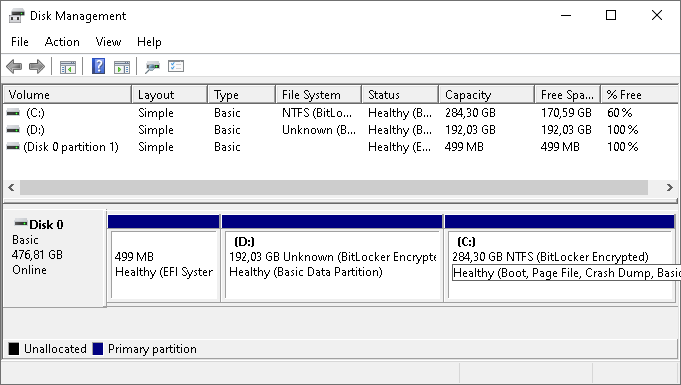
DiskManagement
It is a script used to open the Disk Management tool in the Windows operating system. Disk Management is used to configure and manage hard disks and other storage units on your computer. This tool; It allows you to perform operations such as creating, deleting, formatting, merging and shrinking disk partitions. You can also manage the offline or online status of disks and assign drive letters. diskmgmt.msc plays an especially important role in tasks such as optimizing storage layout and configuring new disks.
4- Services
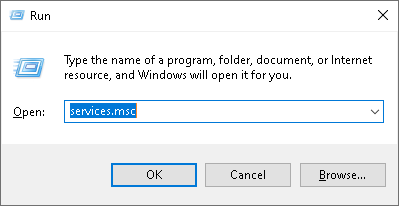
services.msc
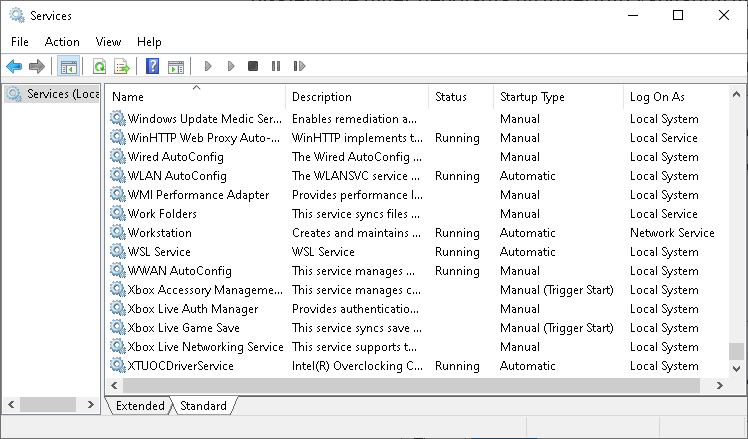
It is a script used to open the Services management console in the Windows operating system. This tool allows you to view and manage the list of all running or stopped services in the system. Users can start, stop, restart services, or configure their startup type (automatic, manual, disabled). For example, services such as Windows Update or Network Connections can be managed in this console. services.msc plays a critical role in optimizing system performance and troubleshooting.
5- Event Viewer
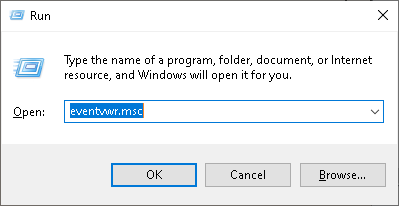
eventvwr.msc
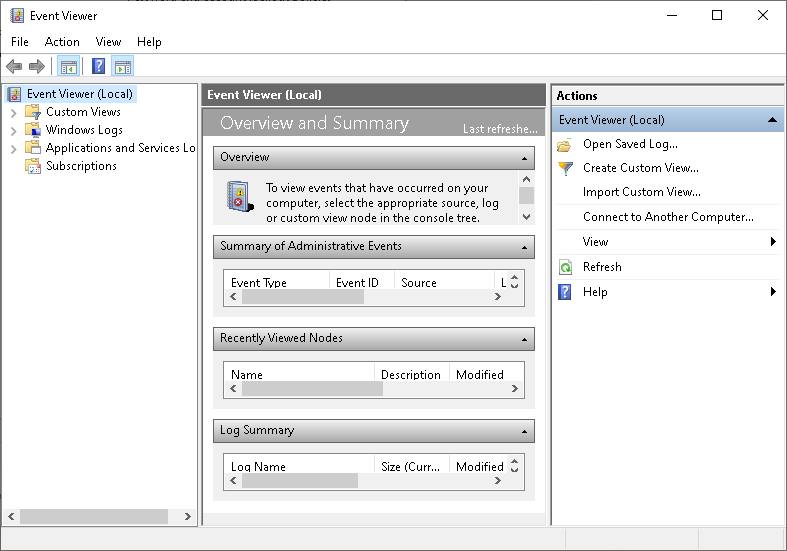
Event Viewer
It is a script used to open the Event Viewer tool in the Windows operating system. Event Viewer is an administrative tool used to examine events and errors occurring in the system. Log records in system, security, application and other categories (event dayregularly stores it in this vehicle. By reviewing these logs, users can diagnose application errors, security breaches or hardware problems. This tool is especially critical for detecting and fixing system problems.
6- Local Security Policy
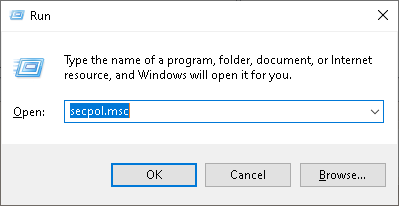
secpol.msc

Local Security Policy
It is a script used to open the Local Security Policy tool in the Windows operating system. This tool is used to centrally manage and configure the security settings of the system. Local security policies; Provides control over account policies (such as password requirements), local policies (such as logging and auditing rules), and user permissions. For example, tasks such as enforcing password complexity or imposing access restrictions on a specific user can be performed through secpol.msc. This tool plays a critical role, especially for optimizing the security of the system and streamlining access controls.
7- Local Group Policy Editor
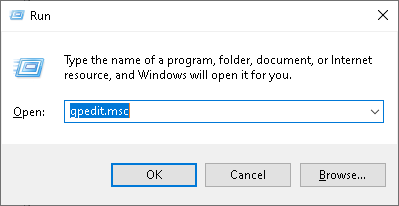
gpedit.msc
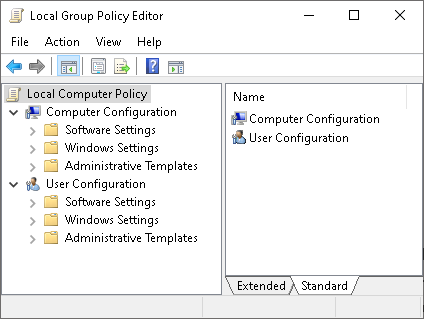
Local Group Policy Editor
It is a script used to open the Local Group Policy Editor in the Windows operating system. This tool is used to configure local group policies that control the behavior of users and computers on the system. Group Policy Editor; It includes a wide range of settings, such as setting software restrictions, managing logon policies, configuring network settings, and enforcing security requirements. It is especially available in Windows Pro and above and is a critical tool for system administrators to centrally edit local policies.
8- Local Users and Groups
lusrmgr.msc
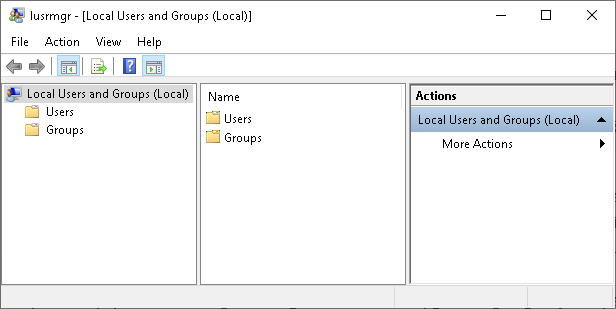
Local Users and Groups
It is a script used to open the Local Users and Groups management tool in the Windows operating system. This tool is used to manage local user accounts and groups on a computer. Users can create new user accounts, edit existing accounts, assign membership to groups, and configure user permissions through lusrmgr.msc. It also supports actions such as changing password settings, checking the activity status of accounts, or setting access restrictions for specific users. This tool has an important role to manage local security and user access, especially by system administrators.
9- Task Scheduler
taskschd.msc

Task Scheduler
It is a script used to open the Task Scheduler tool in the Windows operating system. Task Scheduler lets you run tasks automatically at specific times or when events occur. With this tool, users can review the default tasks in the system, create new tasks, and configure the scheduling settings of these tasks. For example, actions such as running a backup, performing system maintenance, or launching an application can be performed at a specific time. taskschd.msc provides automation, allowing users to easily plan routine operations.
10- Shared Folders
fsmgmt.msc
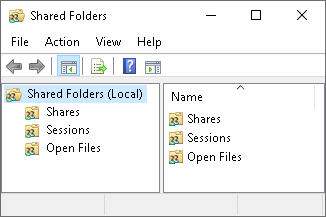
Shared Folders
It is a script used to open the Shared Folders management console in the Windows operating system. This tool is used to view and manage shared folders on a computer and user sessions connected to these folders. Through this console, users can review existing shares, add new shares, configure access permissions, and control active sessions. You can also terminate access for specific users by managing open files.It also supports operations such as mining. fsmgmt.msc plays an important role in controlling user activities and sharing settings, especially on systems that share network resources.
11- Advanced Security with Windows Defender Firewall
wf.msc

Windows Defender Firewall
It is a script used to open the Advanced Security with Windows Defender Firewall tool in the Windows operating system. This tool allows you to manage firewall settings in detail. Through this console, users can create rules for incoming and outgoing connections, edit existing rules, or disable them. Additionally, special security rules can be configured for specific applications or ports. wf.msc plays a critical role in increasing the security of the computer and blocking unwanted connections by controlling network traffic.
12- Printing Management
printmanagement.msc
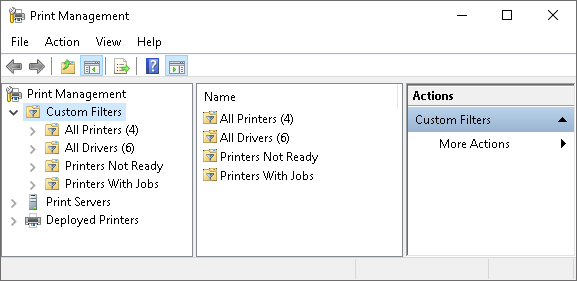
Print Management
It is a script used to open the Print Management console in the Windows operating system. This tool allows you to centrally manage printers and print queues. Through this console, users can add and remove connected printers, manage shared printers, and get information about print jobs. Additionally, tasks such as driver updates, printer troubleshooting, and configuring printer access permissions can also be performed through this tool. printmanagement.msc plays an important role especially for system administrators who manage network printers.
13- Certificate Management
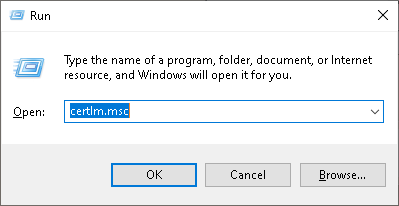
certlm.msc
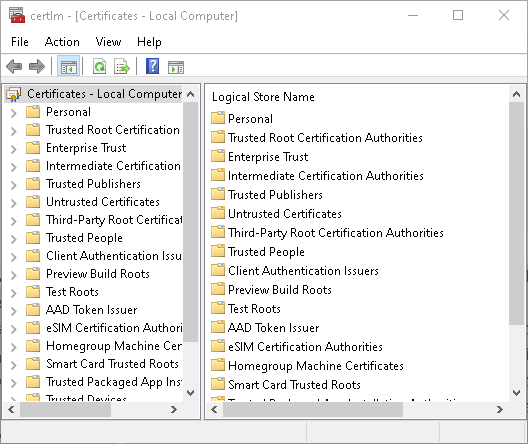
Certificates â€" Local Computers
It is a script used to open the Local Computer Certificates Management tool in the Windows operating system. This tool is used to review, manage and edit certificates installed on a computer. Certificates are used for security tasks such as secure connections, authentication, and encryption. From this console, users can view certificate stores, add new certificates, delete existing certificates, or review certificate properties. certlm.msc plays a critical role in computer-level certificate management, especially for system administrators.
14- Performance Monitor
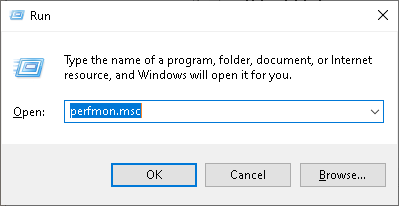
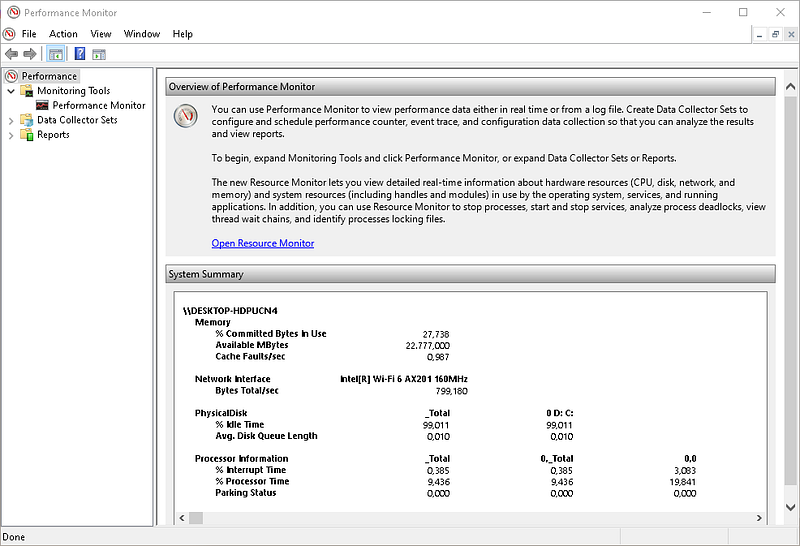
perfmon.msc
Performance Monitor
It is a script used to open the Performance Monitor tool in the Windows operating system. This tool is used to monitor the performance of the computer in real time and collect historical data about performance. Users can analyze system resources in detail, such as CPU, memory, disk and network usage. Additionally, it is possible to monitor the performance of specific processes or applications by adding custom performance counters. perfmon.msc plays a critical role in diagnosing system performance issues and identifying optimization opportunities.
15- Remote Desktop Services Manager

tsadmin.msc

Also known as Remote Desktop Services Manager, it is an administrative tool used in Windows Server operating systems. This tool is designed specifically for managing Terminal Server user sessions. Through this console, administrators can monitor connected users' sessions, end sessions, send messages, and control user sessions remotely. It is also used to view performance data about sessions and troubleshoot problems. However, in Windows Server 2012 and later this tool is not available by default; Instead, alternative management tools such as Server Manager or Group Policy are used.
16- Authorizedirme Manager
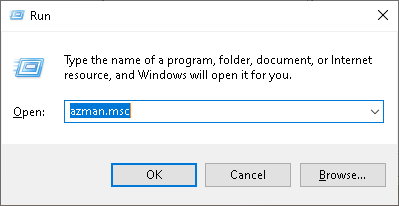
azman.msc
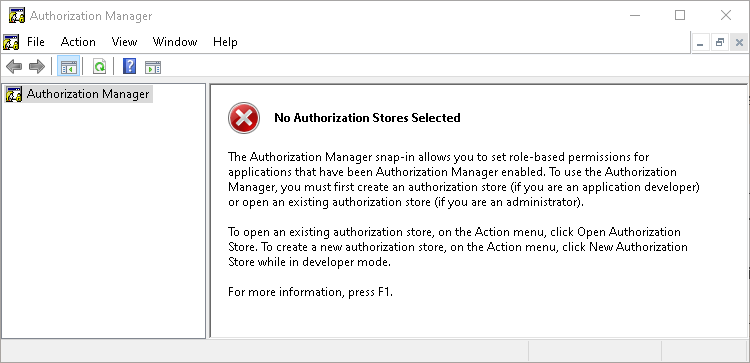
Authorization Manager
It is an administrative tool known as Microsoft Authorization Manager. This tool provides a role-based access control and security framework for .NET-based applications. Using this console, administrators can manage users' and groups' access permissions to specific resources and create and enforce policies. It also allows applications to use these access controls at runtime. However, this tool is not available by default in newer Windows versions and has generally been replaced by more modern security management tools.
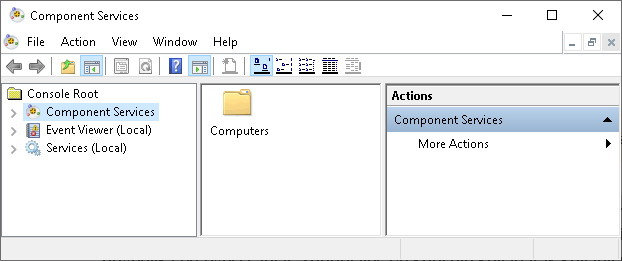
17- Component Services
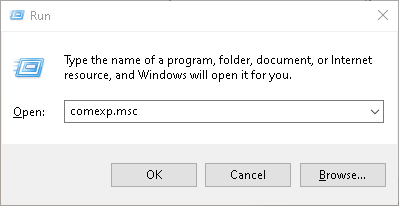
comexp.msc
Component Services
It is a Microsoft Management Console (MMC) component used in Windows operating systems and is known as "Component Services". This tool is designed specifically for managing COM+ applications and services. Using this console, administrators can edit COM+ application configurations, review event logs, and optimize the performance of components in the system. It also offers the possibility to configure settings that facilitate communication and resource sharing between applications. This tool plays a critical role, especially in ensuring that enterprise applications run reliably and efficiently.
Active Directory Administrative Tools â€" ADAT
Windows Active Directory Administrative Tools (ADAT) are tools used to manage and configure an Active Directory (AD) environment. These tools allow system administrators to manage user accounts, computers, groups, policies, and other AD objects. Active Directory plays a central role for user and resource management, especially in enterprise networks. Here are the most commonly used Active Directory management tools:
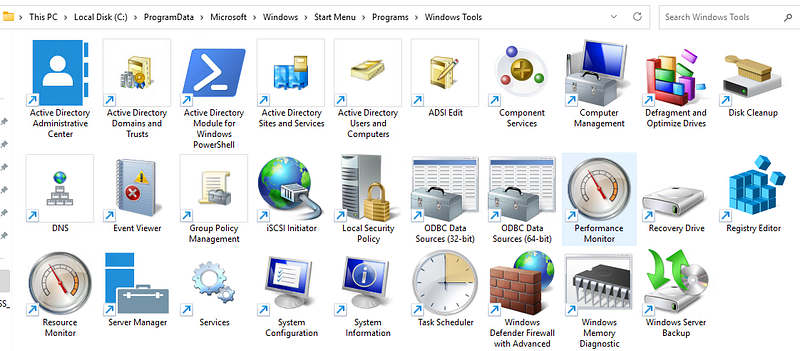
ADAT
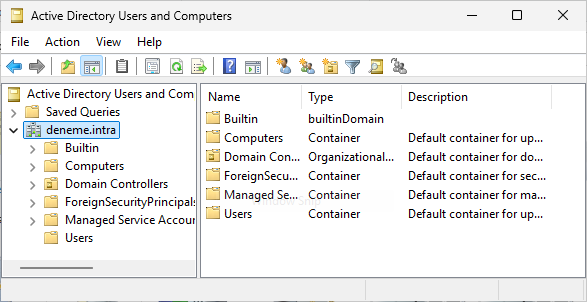
1. Active Directory Users and Computers (ADUC)
It is used within Microsoft's Active Directory service to manage user accounts, computers, groups, and organizational units (OU). Administrators can create new users, edit accounts, enforce password policies, and move objects between different organizational units
Active Directory Users and Computers
2. Active Directory Domains and Trusts
It is used within Microsoft's Active Directory service to manage trust relationships between domains. Administrators can create, edit, or remove domain trusts. Additionally, operations such as increasing the domain functional level are also performed through this tool.

Active Directory Domains and Trusts
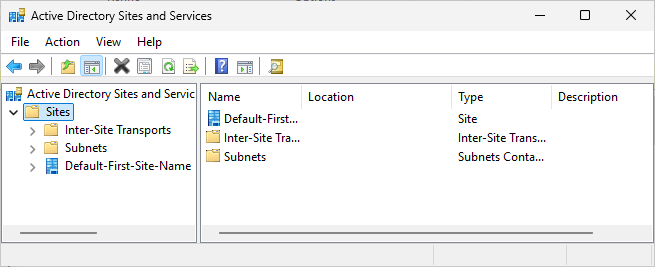
3. Active Directory Sites and Services
It is used to manage the physical topology of AD. Administrators can optimize network traffic and adjust replication settings by configuring sites, subnets, and site links.
Active Directory Sites and Services
4. Active Directory Administrative Center (ADAC)
It offers a more modern interface for managing AD objects. This tool, which is used especially in Windows Server 2008 R2 and later, offers more advanced management options by integrating with PowerShell cmdlets.
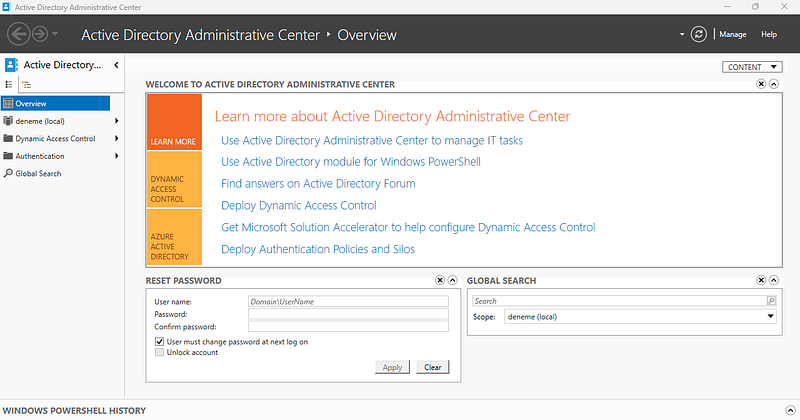
Active Directory Administrative Center
5- Group Policy Management Console (GPMC)
It is used to manage Group Policies. Administrators can create and edit policies and apply them to specific groups of users or computers. GPMC makes it easy to manage policy settings centrally.
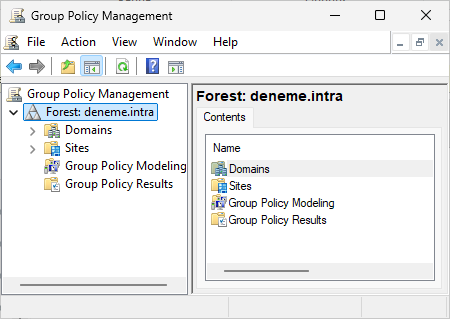
Group Policy Management Console
6- Active Directory Module for Windows PowerShell
It is used to perform AD management operations via the command line. poVarious operations can be performed on user accounts, groups, policies and other AD objects with werShell cmdlets. This is especially useful for automation and batch processing.
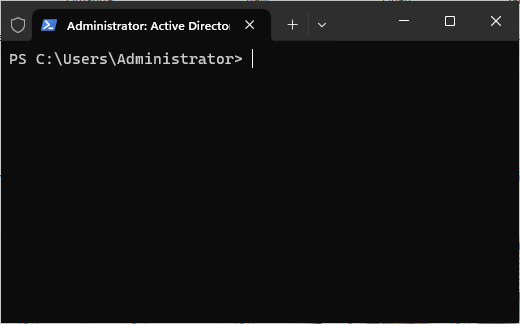
Active Directory Module for Windows PowerShell
**Windows Management Instrumentation â€"**WMI
Windows Management Instrumentation (WMI) is an infrastructure developed by Microsoft for system management and data access in Windows-based operating systems.
WMI allows system administrators to:
- Querying system information (e.g. processor, memory, disk usage).
- Start, stop or restart services.
- Monitoring and managing events (for example, executing a command when a specific event occurs).
- Managing remote computers.
WMI works through WMI Providers. These providers collect information about hardware, software, and operating system components and provide this information to WMI. WMI makes this information queryable with a query language called WMI Query Language (WQL).
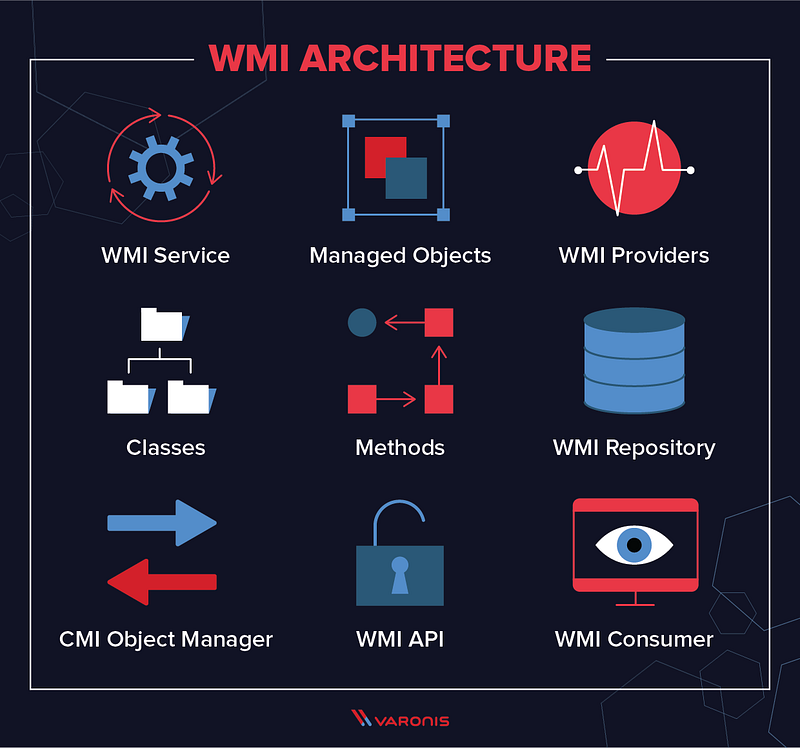
Methods of Working with WMI
WMI offers several methods for system administration. These methods include tools such as PowerShell, VBScript, WMIC (WMI Command-Line), and .NET.
1- PowerShell
PowerShell is an administrative tool used on the Windows operating system that combines a command line interface and scripting language. and is ideal for running WMI queries.
Example: Querying processor information:
Get-WmiObject -Class Win32_Processor
2- VBScript
VBScript (Visual Basic Scripting Edition) is a lightweight scripting language developed by Microsoft. It is designed specifically for Windows operating systems and is used in processes such as task automation and application development. Therefore, it can be used to run WMI queries.
Example: Querying disk information:
strComputer = "."
Set objWMIService = GetObject("winmgmts:\\" & strComputer & "\root\cimv2")
Set colDisks = objWMIService.ExecQuery("SELECT * FROM Win32_DiskDrive")
For Each objDisk in colDisks
    WScript.Echo "DeviceID: " & objDisk.DeviceID
Next
3- .NET
.NET is a software platform developed by Microsoft. It provides both application development and runtime environment. NET applications can run WMI queries with the System.Management namespace.
Example: Querying processor information:
using System.Management;

ManagementObjectSearcher searcher = new ManagementObjectSearcher("SELECT * FROM Win32_Processor");
4- WMIC
WMIC (Windows Management Instrumentation Command-line) is a command line tool used in the Windows operating system. It provides access to WMI (Windows Management Instrumentation) via the command line and simplifies system management.
Example: Querying processor information:
wmic cpu get name
Azure Active Directory
Azure Active Directory (Azure AD) is one of the cornerstones of Microsoft's digital transformation strategy and meets the needs of modern organizations with next-generation identity and access management solutions. Here are the key components of the transformation:
- Cloud and Hybrid Integration: Azure AD integrates with on-premises Active Directory, enabling hybrid identity management, thus providing secure access to both cloud and local resources.
- Zero Trust Security Model: With new generation security strategies, it verifies every access request and applies the principle of minimum privilege.
- Conditional Access: Creates security policies based on factors such as device status, location, and sign-in risk.
- Identity Protection: Detects and prevents risky logins with artificial intelligence-powered analysis.
- Mobile and Remote Work Supports: Thanks to integration with Microsoft Intune, management of mobile devices and remote workers becomes easier.
It is Microsoft's cloud-based identity and access management solution. It provides secure management of both users and applications and provides a critical infrastructure for modern business environments.
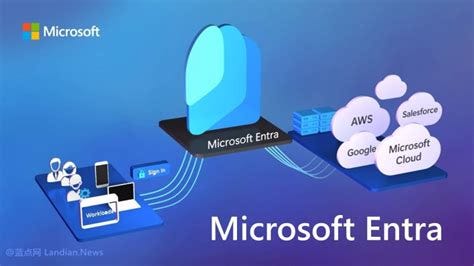
Many management and business tools are available in the Azure AD ecosystem. This makes Azure AD a powerful and integrated solution in terms of both security and management.
To this ecosystem; <https://portaYou can access and review it with your microsoft account at l.azure.com>.